Support.
Looking for support for your Da Vinci?
Ask a question in the chat below for immediate assistance.
What's wrong with my current water?
Most filters leave behind lead, microplastics, chlorine, and 100+ other contaminants. Most dispensers store water in a tank where bacteria grow. Drinkstation solves both — for good.
What kind of filtration does Drinkstation use?
The Da Vinci uses advanced carbon filtration inside the unit. It can also be added to our Absolute Purifier, which fully purifies water through Reverse Osmosis, our Alklaine ph( + chamber. Every unit also has a UV cleanse.
How much space does the Drinkstation occupy?
The Da Vinci 2.0 dispenser measures 12.50"W × 16.75"H × 19.25"D.
Does it require a drain.
No. The Da Vinci 2.0 does not require a drain — simplifying installation anywhere in your space. The reverse osmosis option does require a drain.
What does it cost?
Contact us for to receive a quote based on your space's needs — we provide volume and multi-location benefits as well.
What kind of support is offered?
Our LA–based team is available by phone and email. In-person visits are available on request, and are fully covered under our Peace-of-Mind Plan.
All buttons are off.
Check that the DRINKSTATION® is NOT in its "sleep mode". If the FILTER LIFE (GREEN Indicator) (top right of the front panel) is illuminated, the DRINKSTATION® is simply "sleeping". Touch any button for a few seconds to start. If ALL lights are off (including the two LED indicators at the top right), check the Main Power Switch (BLACK) cord connection: if plugged in, check Main Power Switch (BLACK). If the DRINKSTATION® is connected to a power source, and if the Main Power Switch (BLACK) is on, press the power reset button once or twice.
All button lights are off while the GREEN and RED Indicators (green above and red below) are blinking.
First switch off and on the Main Power Switch (BLACK). You will see that all lights are on. Then dispense ambient water. If no water comes out, it means that there is no water in your pipeline or the water pressure is too low. Check that you have water in your pipeline flowing to the DRINKSTATION® . Check if leak detectors are not triggered. Check if Actifilter® is not clogged. If water comes out from the Ambient option, repeat test with chilled and sparkling function. If no water comes out from either function, turn power off and wait 24 hours. Then turn it on again. Reduce the temperature of the chiller (only in some models). If issue persists, contact Drinkstation support..
Unit does not dispense hot water.
"Child Safety Switch" is on, indicating that hot water dispensing is disabled. To enable hot water, turn the "Child Safety Switch" at the back of DRINKSTATION® to its "off" position. The HOT WATER SAFETY (RED Indicator) should turn on. If the Red Touch Button is not illuminated, push and hold for 15 seconds and it will be fixed.
Hot water is not hot.
Ensure that the Hot Water Switch (RED) is ON (red switch on the back).
Sparkling water is not fizzy.
Open the Side Panel Door and check that the CO2 Regulator is set on Level 6 and the SodaStream® CO2 Canister is properly screwed in. If still not sparkling, make sure that the SodaStream® CO2 Canister is not empty by inserting a new one.
FILTER LIFE (GREEN Indicator) is blinking.
The DRINKSTATION® requires a new Actifilter®.
I hear an audible beeping sound.
The beeping sound may be coming from the Leak Detector device. Locate the Leak Detector, often placed under the counter. If it is beeping and there is a blue light, it means the Leak Detector has come into contact with water. Once the leakage issue is solved, dry the Leak Detector and press the light blue button for 5 seconds. The detector will emit a long beeping sound, then will resume operation. If a red light is blinking, it means that the Leak Detector requires a new battery. To replace the battery, slide the cover of the right side of the control unit and swap out the 9V battery.
The Da Vinci 1.0
If your machine has the term 'ALKALINE' above the white button, you have the Da Vinci 1.0.
The Da Vinci 2.0
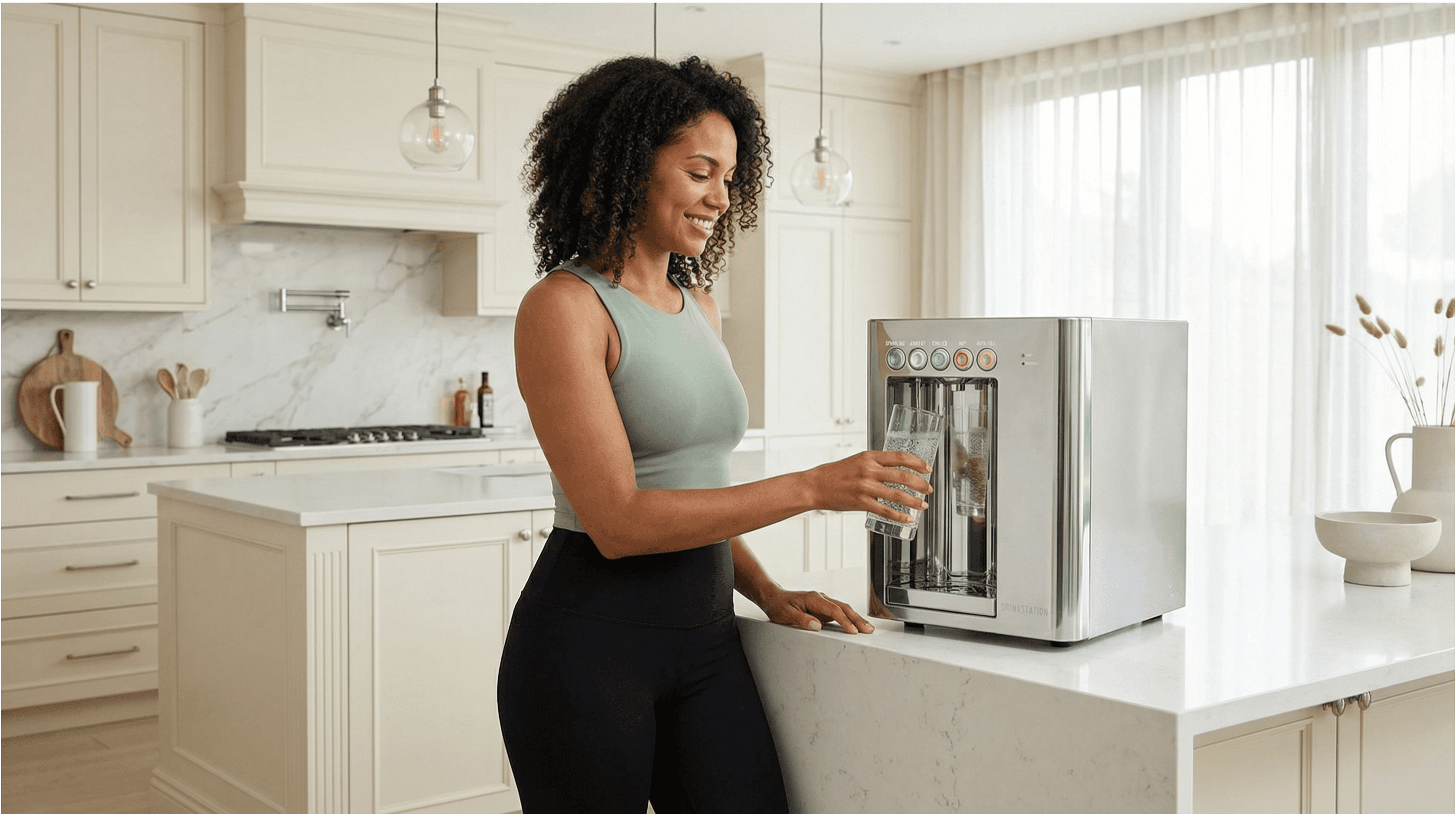
If you have the term 'AMBIENT' above the white button, you have the Da Vinci 2.0.
Other documents
See installation examples and technical documentation.
Reach out below for further assistance.
We will be in touch shortly. In-person service hours are Monday-Friday 9 AM to 5 PM.